Can a USB-C Monitor Stand Replace Your Dock? Map Every Connection
A laptop can charge from a monitor stand while its external screen stays blank. The connector fits, but the charging socket may provide no display path. Before replacing a dock, identify the job performed by every connection.
A USB-C monitor stand can replace a dock only if it documents all the functions your setup needs, including the host connection, peripheral data, display support and suitable charging. Charging ports alone cannot establish those capabilities. A stand can still organize the desk while your existing dock handles the laptop connection.
Step 1: Give each port a job
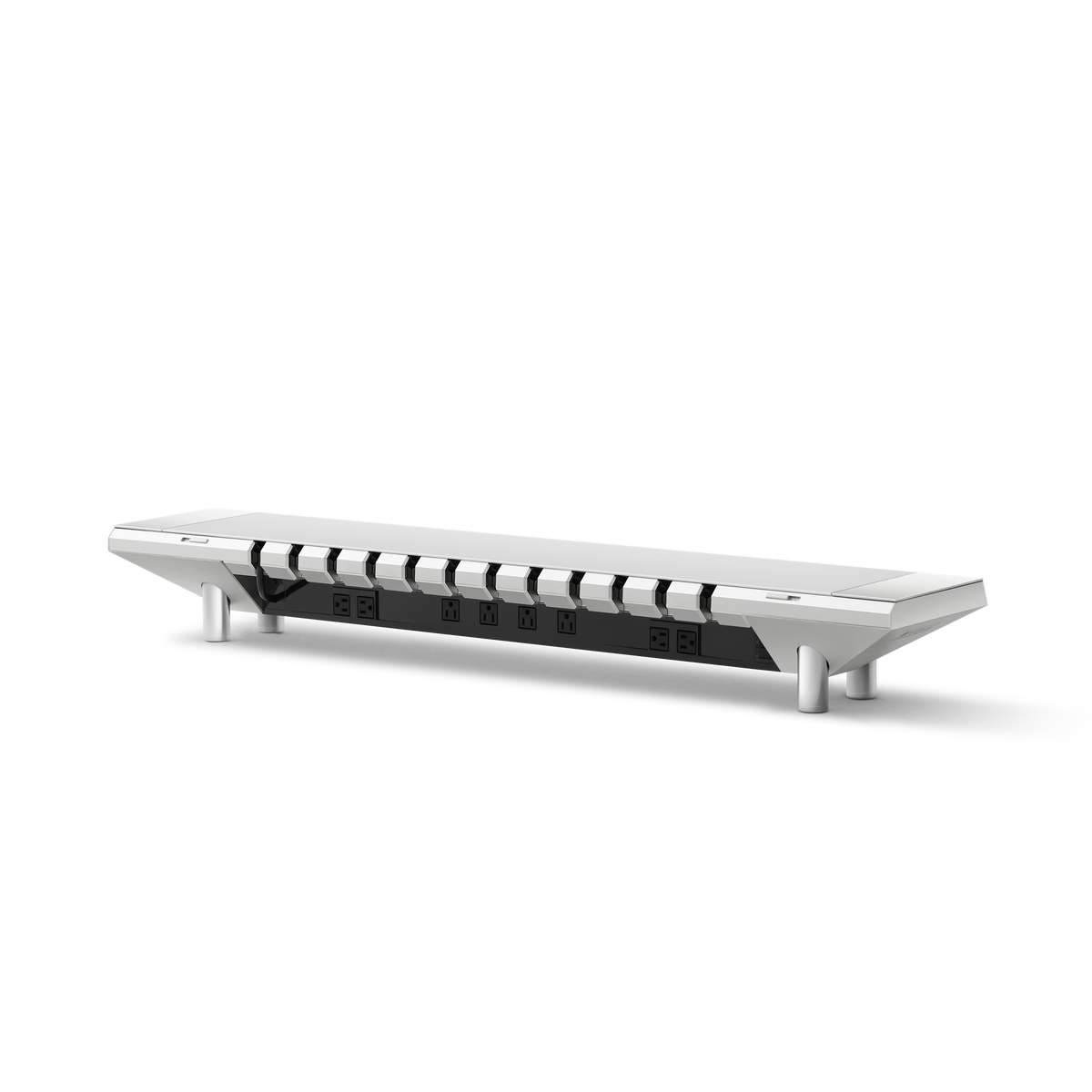
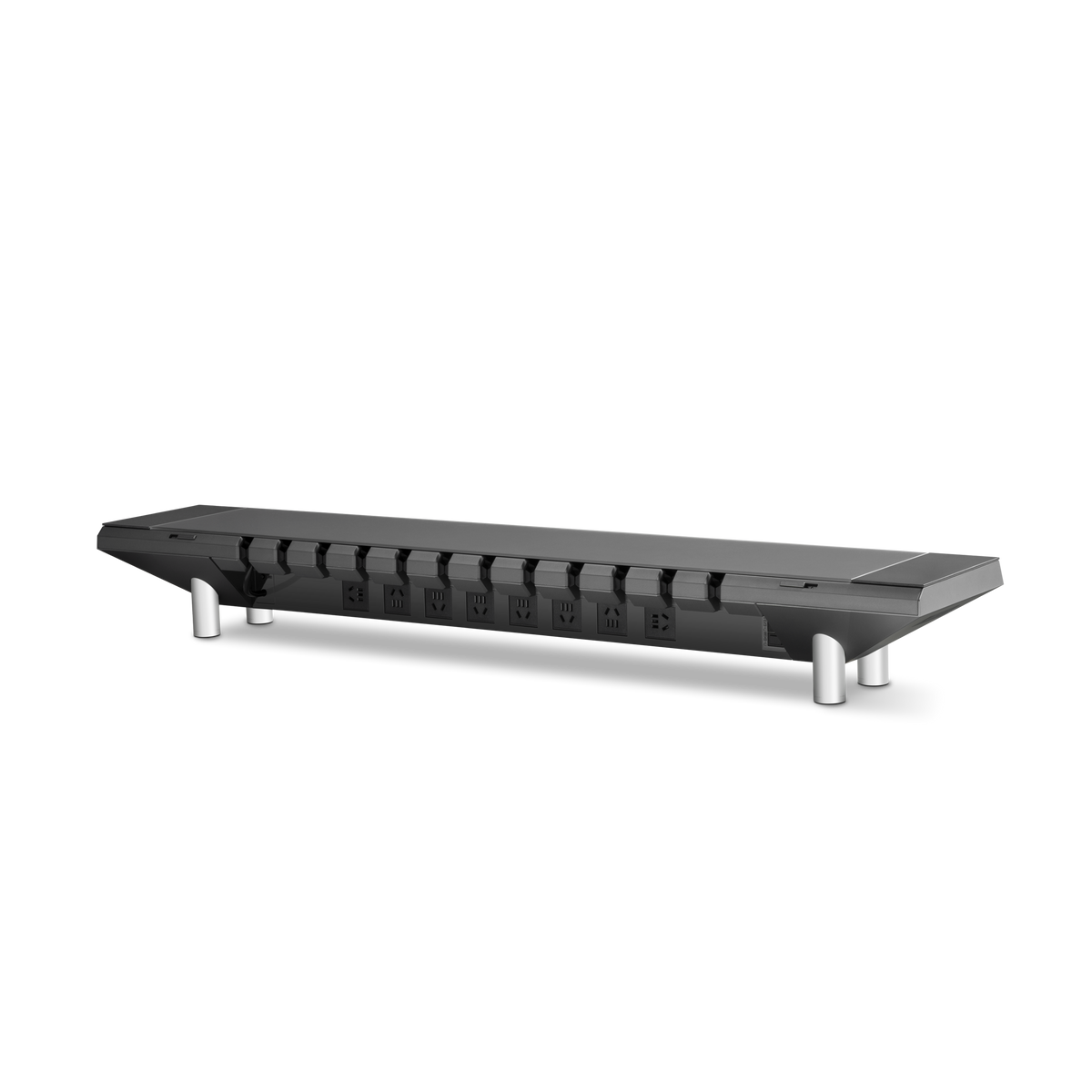
Read the product's port diagram and write down what each socket does. Keep a charging output separate from the computer's data connection. Identify which port connects toward the computer and which connects toward the peripheral. A data bridge or extension should not be assumed to multiply ports like a hub.
| Connection | What you need to establish | What does not establish it |
|---|---|---|
| AC power | Correct regional outlet version and equipment requirements | A USB wattage figure |
| USB charging | Supported power profile, cable and simultaneous-use limits | Connector shape alone |
| Peripheral data | A documented path back to the computer | A device's charging light |
| Display signal | Supported host output, cable and display input | A data-transfer speed printed on a port |
USB-IF's cable guidance explains that cables have different capabilities. A suitable cable must match the equipment's supported functions; it cannot add a capability the equipment lacks.

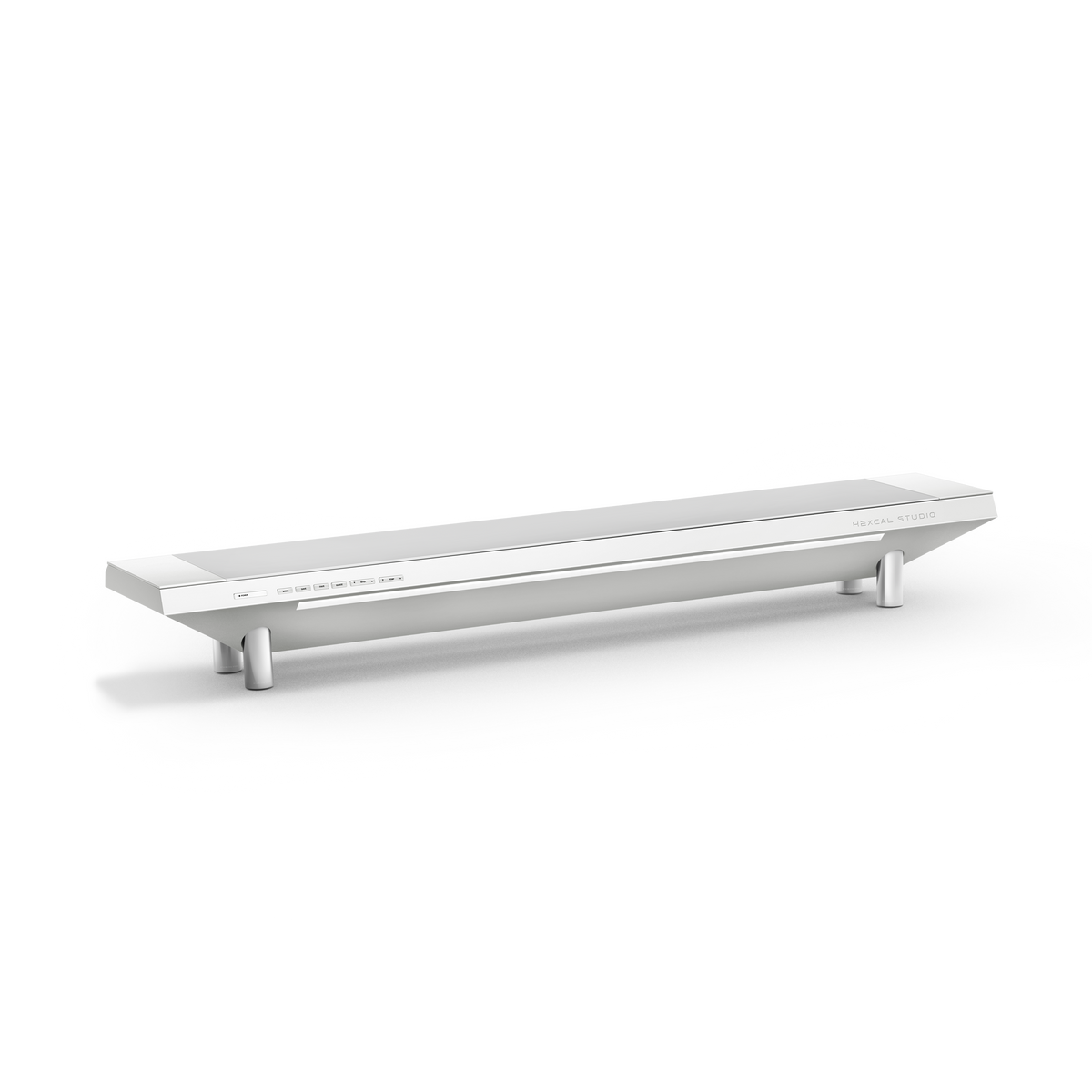
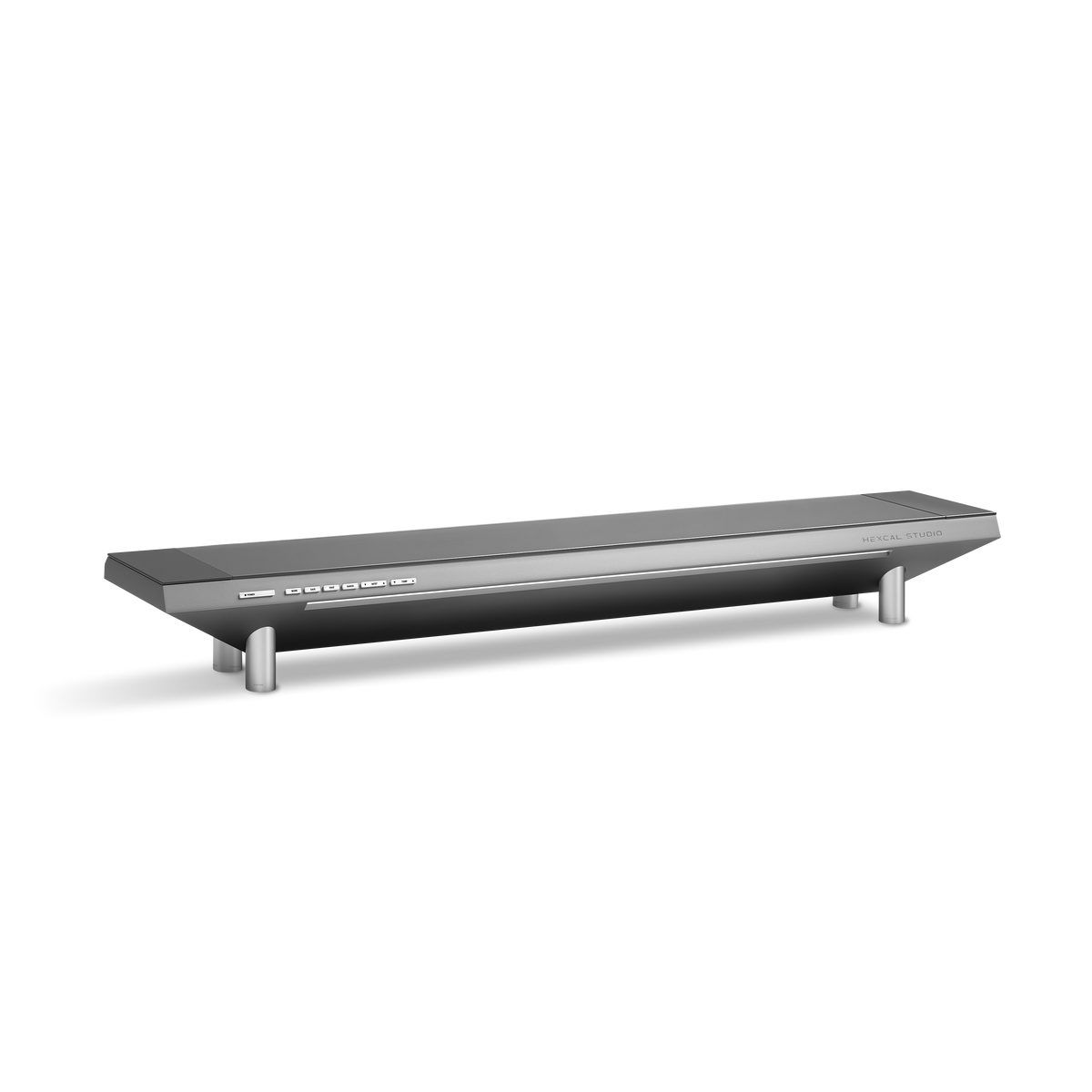
The current Studio Gen2 product page lists charging connections separately from USB data bridging. Connect the display to a supported computer or dock output; the charging ports and data bridges perform separate jobs.
Step 2: Map a laptop you take away daily
For a laptop example, use a 13-inch MacBook Air with M4 (2025), a Dell U2723QE monitor, a compatible USB-C-to-DisplayPort display cable, and the laptop's supplied charging equipment.
Apple's specifications for this MacBook Air document display output through its Thunderbolt USB-C ports and a separate MagSafe charging connection. Dell's U2723QE specifications document its DisplayPort and HDMI inputs. Here, use the DisplayPort input for video and keep the supplied laptop adapter for charging. Confirm the intended display mode and cable support before assembly; this example does not rely on the monitor's USB-C charging function.
Connection plan A: laptop, one screen, separate charging.
| Path | Route | Daily access point |
|---|---|---|
| Power | Wall → suitable supply arrangement → laptop adapter → MagSafe | MagSafe at laptop |
| Video | Laptop Thunderbolt USB-C → compatible USB-C-to-DisplayPort cable → U2723QE DisplayPort input | USB-C at laptop |
| Peripheral data, if needed | Laptop USB-C → documented bridge or suitable hub → peripheral | Host-side connector |
| Monitor power | Suitable AC supply → monitor power input | Usually remains connected |
The stand may organize the adapter and fixed leads. It has not converted this into a one-cable laptop setup. If you want one connection on arrival, a compatible dock or a display with the required documented hub and power functions may still have a useful job.
Before removing the existing dock, list any Ethernet, storage, audio or card-reader connection it provides. Retain those functions through a documented alternative or keep the dock. A cleaner desk should not silently remove a working part of the setup.

Step 3: Map a desktop with two displays
For a fixed desktop example, use a Mac mini with M4 (2024), two Dell U2723QE monitors, and compatible cables. It uses separate host outputs rather than routing video through the stand.
Apple's Mac mini specifications document HDMI and Thunderbolt display connections. Select a resolution and refresh-rate combination allowed by the exact host, screens and cables.
Connection plan B: fixed desktop and two screens.
| Path | Route | What the stand contributes |
|---|---|---|
| First screen video | Mac mini HDMI → first U2723QE HDMI input | Cable organization only |
| Second screen video | Mac mini Thunderbolt → compatible USB-C-to-DisplayPort cable → second U2723QE DisplayPort input | Cable organization only |
| Peripheral data | Mac mini data port → documented bridge → peripheral | Accessible extension if supported |
| Equipment power | Suitable AC supply → computer and each display | Distribution and storage where documented |
Keep the two video lines identifiable. If the second display disappears after a change, trace that output and cable first. The fact that the stand still charges a phone does not verify the display route.

Step 4: Check simultaneous charging before consolidating
A single-port maximum is not the same as the output available when other ports are occupied. Read the model's allocation table for the combination you intend to use, including the laptop and any device plugged in alongside it.
Avoid comparing models by one total wattage figure. AC distribution, wired USB charging and wireless charging are different functions. Record which devices share a power budget and which port supplies the laptop. If the documentation is ambiguous, keep the known working charger while the manufacturer confirms the combination.
The current Studio Plus specifications describe its charging allocations separately. Do not copy those capabilities into Gen2 or an older Studio. Product generation and regional configuration belong in the connection plan.
Decide what the dock can stop doing
Keep a dock when it provides a required display route, network connection, peripheral set or convenient host connection that the proposed stand does not document. You may remove it when every required function has a confirmed replacement and the physical route works at the desk.
For long-term use, favor a connection plan you can explain and repair. Label the fixed leads and leave the daily laptop connections reachable. The monitor cable maintenance guide takes that plan through a device replacement; the premium monitor stand guide helps decide whether the integrated platform itself is worth adding.