Monitor Arm for a Standing Desk: Mounting and Movement
A clamp can open wide enough for your desktop and still have nowhere suitable to grip. The frame may occupy the underside, the edge may be shaped, or the material may need mounting provisions the arm doesn't supply. Before choosing a monitor arm for a standing desk, check the complete installation and the two movements it must accommodate: desk travel and screen adjustment.
You can use an arm when the display, arm and desk meet the relevant mounting requirements. Screen size and a matching finish won't establish that fit. Work through this six-step mount check before removing a support that already works.
Step 1: Identify the exact display and arm
Record the monitor model, the manufacturer's mounting weight and its VESA pattern. Check how attached equipment is counted: a camera or another accessory can add to the mounted load. Use the display's mounting instructions for the plate, screws and any required adapter.
Then match that information to the exact arm. Both the minimum and maximum supported weight matter. A large-looking arm can still be unsuitable for a lightweight screen.
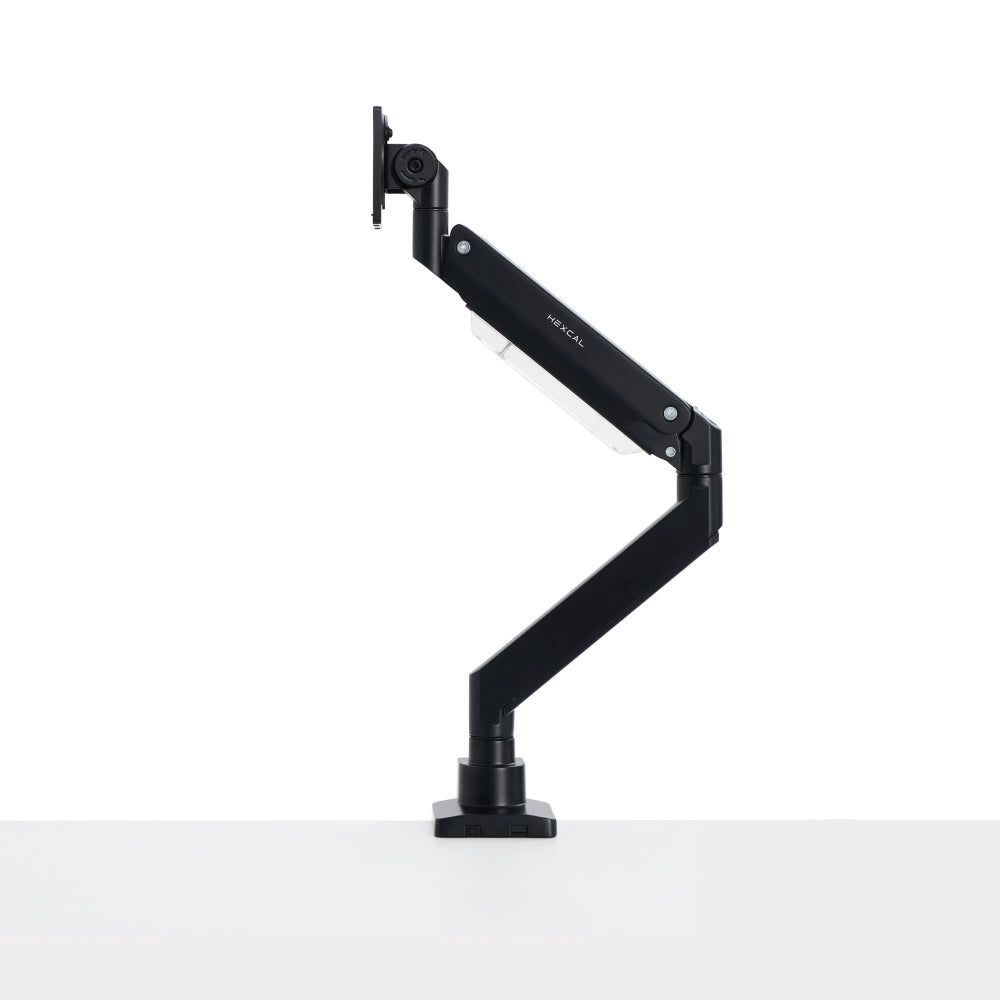
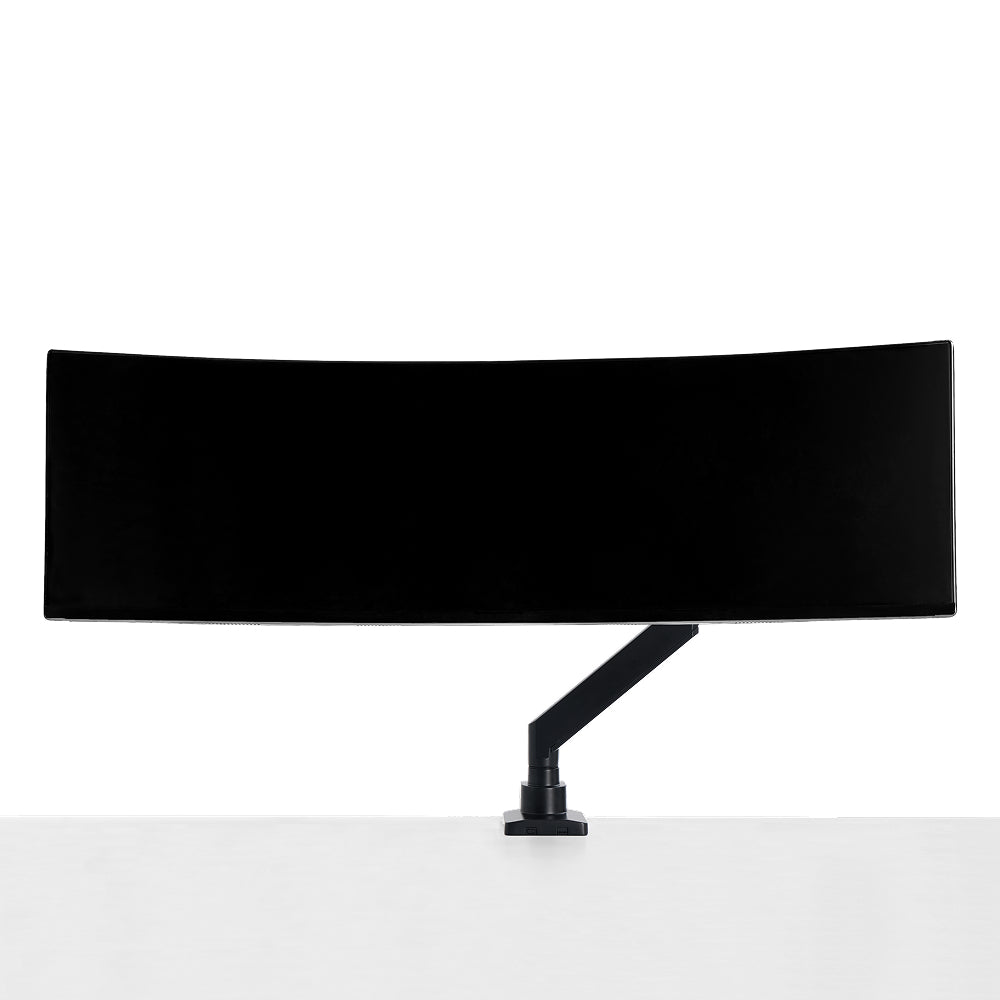
For a current Hexcal example, the Heavy Duty Monitor Arm specifications describe one display up to 57 inches, with separate supported weight ranges of 2–27 kg for a flat screen and 2–22 kg for a curved screen. Its listed VESA patterns are 75×75, 100×100, 200×100 and 200×200 mm. A 49-inch label alone therefore doesn't settle compatibility. Use the curved-screen range for a curved display and verify its actual mounting details.
The standard Hexcal Single Monitor Arm has its own limits: one screen up to 35 inches, a 3–11 kg weight range, and 75×75 or 100×100 mm VESA patterns. For a two-monitor setup, choose a support arrangement specified for both screens.
If you're still deciding whether an arm is necessary, compare the monitor stand and monitor arm approaches. Retaining an existing base is a reasonable long-term choice when it supports the required position and leaves enough working space.

Step 2: Check the approved mounting surface
Find the desk manufacturer's instructions for an arm attachment. Identify the desktop material, its structure and any restrictions on drilling or clamping. Thickness is only part of the answer. A hollow construction, bevel or damaged edge may need a different approach from a flat, supported surface.
For the Heavy Duty model above, the product page lists 10–45 mm for clamp installation and 10–60 mm for grommet installation. Those ranges describe thickness compatibility; they don't approve every material or every point along an edge. Use the model's installation instructions to establish the required contact area and hardware.
A grommet hole also needs verification. A hole intended for cable passage isn't automatically the right size or location for an arm. Check the installation geometry and what lies underneath before considering drilling.
Don't treat a riser or a convenient piece of equipment as an alternative desktop. Hexcal explicitly discourages clamping the Heavy Duty arm to the Studio chassis because of balance and access concerns. Plan a supported attachment directly to the desk instead.
Step 3: Map the clamp, frame and storage together
Look below the selected point before settling the screen position above it. Mark the lower clamp's footprint and the space needed for its fastener or adjustment mechanism. Then include the frame, cable tray and any drawer in the same view.
Hypothetical rejection: a 25 mm desktop falls within an arm's documented clamp opening range. But a frame member occupies the area where the lower clamp must sit, preventing full contact with the approved underside surface. Reject that mounting point. The thickness check passed; the installation didn't.
Moving the clamp along the edge might resolve the interference, provided the new point meets the same mounting requirements and the arm can still position the screen. If it cannot, consider another manufacturer-approved installation or retain the original base. Padding the gap or substituting a longer screw without approval doesn't answer the contact problem.
Leave access to nearby storage. A tray that can only open after the arm is loosened creates an avoidable maintenance problem. Check wall clearance too: the folded arm and its cables may need space behind the desk even when the screen itself is well inside the desktop edge.

Step 4: Position the screen for your seated and standing tasks
Set the keyboard and mouse position before using the arm's reach to fill the remaining space. Bring the screen into a position where you can read it without leaning toward it or pushing input devices out of reach. Check this at the seated and standing heights you intend to use.
OSHA's monitor positioning guidance recommends keeping the top of the screen at or slightly below eye level, with adjustments for the user's needs. Treat that as general positioning guidance. A monitor arm doesn't establish the right desk height or guarantee relief from discomfort.
For a wide display, check what happens when you view its outer areas. An arm's maximum extension isn't a target position. If comfortable viewing places the screen behind the desk or pushes your keyboard to the front edge, reconsider the complete arrangement. The standing desk setup guide helps resolve that wider layout.
If the complete arrangement will not fit, compare the desk depth for an ultrawide display before choosing the desk.
Step 5: Check screen movement separately from desk travel
One clear path doesn't prove the other. A screen may move freely on the lowered desk while its display cable becomes taut when the desk rises.
| Motion | Where a problem can appear | What must remain available |
|---|---|---|
| Desk rises with screen in its usual position | Leads to a fixed floor PC or wall outlet | Adequate cable travel without connector tension |
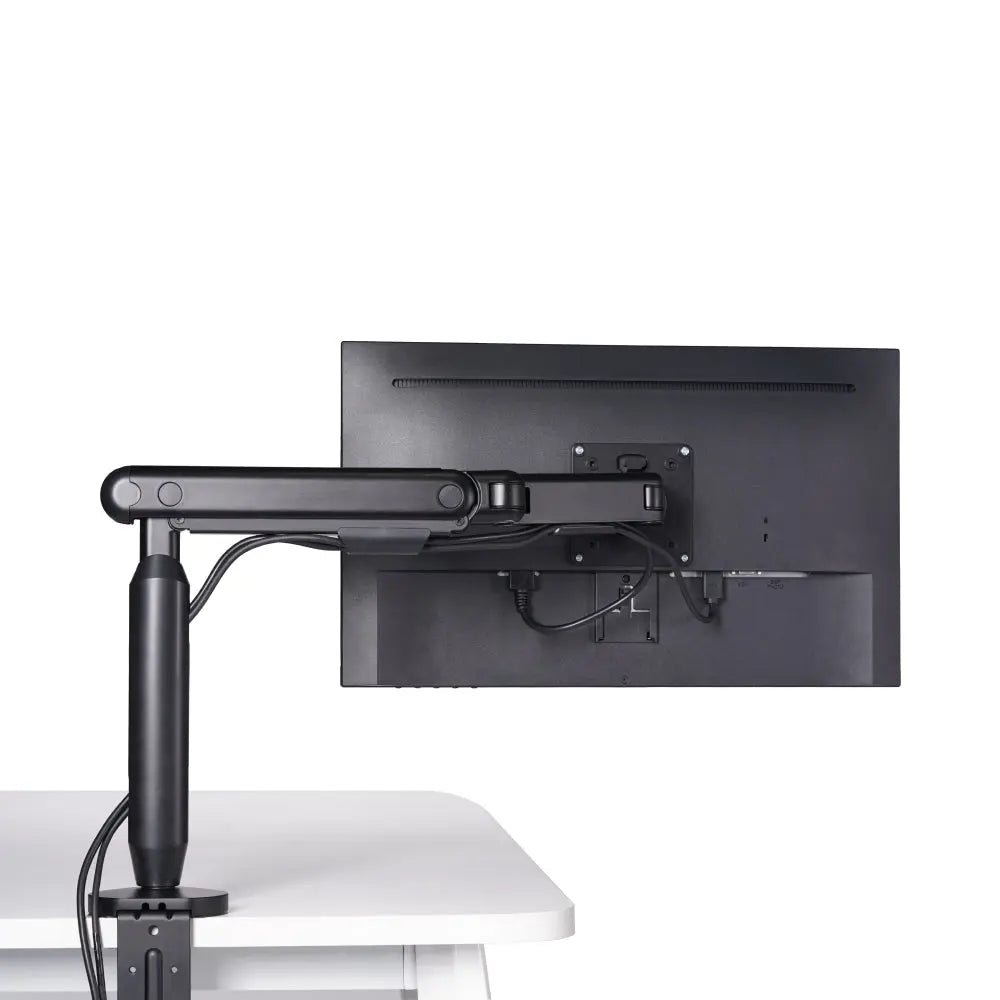
| Arm extends toward the user | Cable covers, joints and screen inputs | The arm's instructed routing allowance |
| Screen turns toward another person | Wall, shelf or nearby equipment | Intended screen clearance and cable movement |
| Desk lowers with the arm folded | Spare loops, tray and frame | A clear place for the returning cable length |
Use the relevant instructions when checking these positions and stop if a route tightens or catches. The standing desk cable slack guide covers the fixed-to-moving connections in detail.
Screen movement can also make desk movement more noticeable. Don't infer zero wobble from the arm's load rating. Evaluate the assembled configuration at your working heights, and follow the manufacturers' guidance if movement or drift appears.
Step 6: Install to the model's instructions, then confirm the usable range
Use the supplied installation sequence, required assistance and specified hardware. There isn't a universal screw length or tightening torque for every VESA plate, desk clamp or screen. Check the exact manuals instead of transferring instructions from a visually similar arm.
Once installation is complete, confirm the positions you actually need and the connections that move with them. Keep the instructions and the recorded display model for the next equipment change. A replacement screen warrants a new fit check, even if the same arm remains in service.
Choose the mount after these checks give it a clear job: supporting the right display, attached to an approved surface, with useful adjustment and accessible connections. More reach or a larger quoted capacity has value only when your workstation can use it.