Maximieren Sie Ihre Produktivität: Der ultimative Leitfaden zur Einrichtung eines Stehpults und zum Kabelmanagement
The screens have moved to a new desk. Your work has not. The same laptop needs charging, the same reference window needs a place beside the main task, and the keyboard still needs room in front of you. Raising the surface exposes any connection or piece of equipment that the new layout forgot.
Build a standing desk setup around those existing jobs. Keep the devices that already do them well, establish useful seated and standing positions, and separate equipment that moves with the desktop from equipment that stays in the room. Finish by doing a familiar task in both positions before fastening the final cable route.
Step 1: Keep the work, then decide what to keep on the desk
Start with an actual task rather than a photograph of someone else's workstation. Open a document and its reference material. Make a video call with the camera, microphone and headphones you use. If you edit, place the timeline, preview and controls where you normally need them.
Write down the equipment involved and what you touch during that task. A second monitor might hold essential reference material, or it might spend most of the day displaying a window that could live elsewhere. A dock may still be necessary for your computer's display connections even if another product provides charging.
Use that inventory to make the first decisions:
| Existing item | Keep it when | Recheck before moving it |
|---|---|---|
| Monitor on its original base | Its adjustment and footprint still suit the task | Full base support, resulting screen position and room for inputs |
| Monitor arm | You use its movement or it solves a space problem | Approved mounting surface, arm range, frame clearance and exact display compatibility |
| Dock | It supplies connections the computer still needs | Host support, display mode and reachable daily connections |
| Desktop computer | It remains suitable for the work | Location, supported load, ventilation instructions and connections across the moving boundary |
| Shelf or powered stand | Its raised surface, storage or integrated functions have a useful job | Added screen height, access and remaining working space |
Keep a working device for long-term use when it still meets the requirement. Changing the desk does not create a reason to replace every accessory. If the desk itself is still undecided, use the standing desk specifications guide to compare the complete configurations first.

Compare the PC placement options before deciding which devices the desk will carry.
Step 2: Reserve the keyboard and mouse area before filling the surface
A monitor can fit within the desk's outside width while its stand leaves very little depth for typing. A screen on an arm may free the surface beneath it while requiring space behind the desk for the arm's movement. Both arrangements need a real outline.
Place the keyboard and mouse first at a position you can use comfortably. Add any notebook, controller or drawing tablet that belongs in the same working area. Then mark the monitor's complete base or the arm's intended position, including rear connectors. If the arm's clamp or range is the unresolved part, use the standing desk monitor-arm mounting guide before fixing its location.
Check the relationship from your working position. Can you read the main display without leaning toward it? Can the mouse move without reaching around a stand foot? Can the notebook remain useful rather than becoming something you move whenever you type?
OSHA's workstation guidance treats the desk, screen and frequently used devices as related parts of the layout. A viewing-distance recommendation is not a minimum desktop-depth specification: your eyes are not located at the front edge of the desk, and a curved screen's base changes the occupied area.
For an ultrawide display, draw its physical outline rather than using diagonal size as desk width. The existing ultrawide monitor setup guide separates the panel, support and connections. Do those checks before committing the surface to a decorative arrangement.
For the desk itself, work through the checks for choosing a desk for an ultrawide monitor.
Step 3: Set up the seated position and standing position separately
Adjust the desk around your input devices and working posture, then check the screen. The desktop and monitor may travel together, but the difference between your seated and standing positions can still call for a screen adjustment.
Keep the main task in front of you. Check that the screen can reach a useful position without lifting your chin or forcing the keyboard farther away. For more detailed positioning, use the existing standing desk use tutorial; the furniture's ability to move does not establish an ideal height or schedule for every person.
Now look underneath. At your seated setting, check where knees and thighs go, whether chair arms meet the desktop, and whether a drawer or tray occupies space you need. At the standing setting, include shelves, window ledges and equipment above or behind the desk in the clearance check.
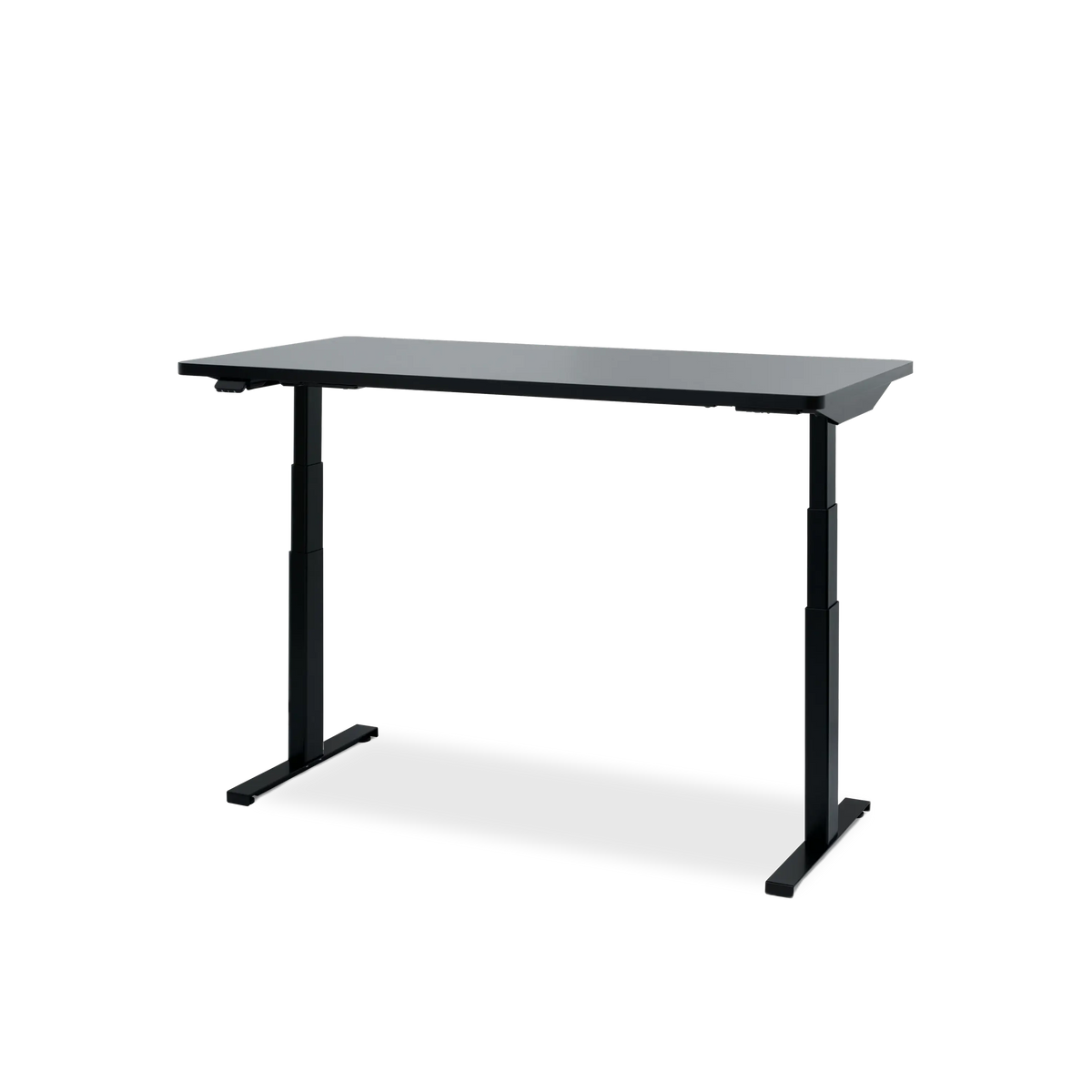
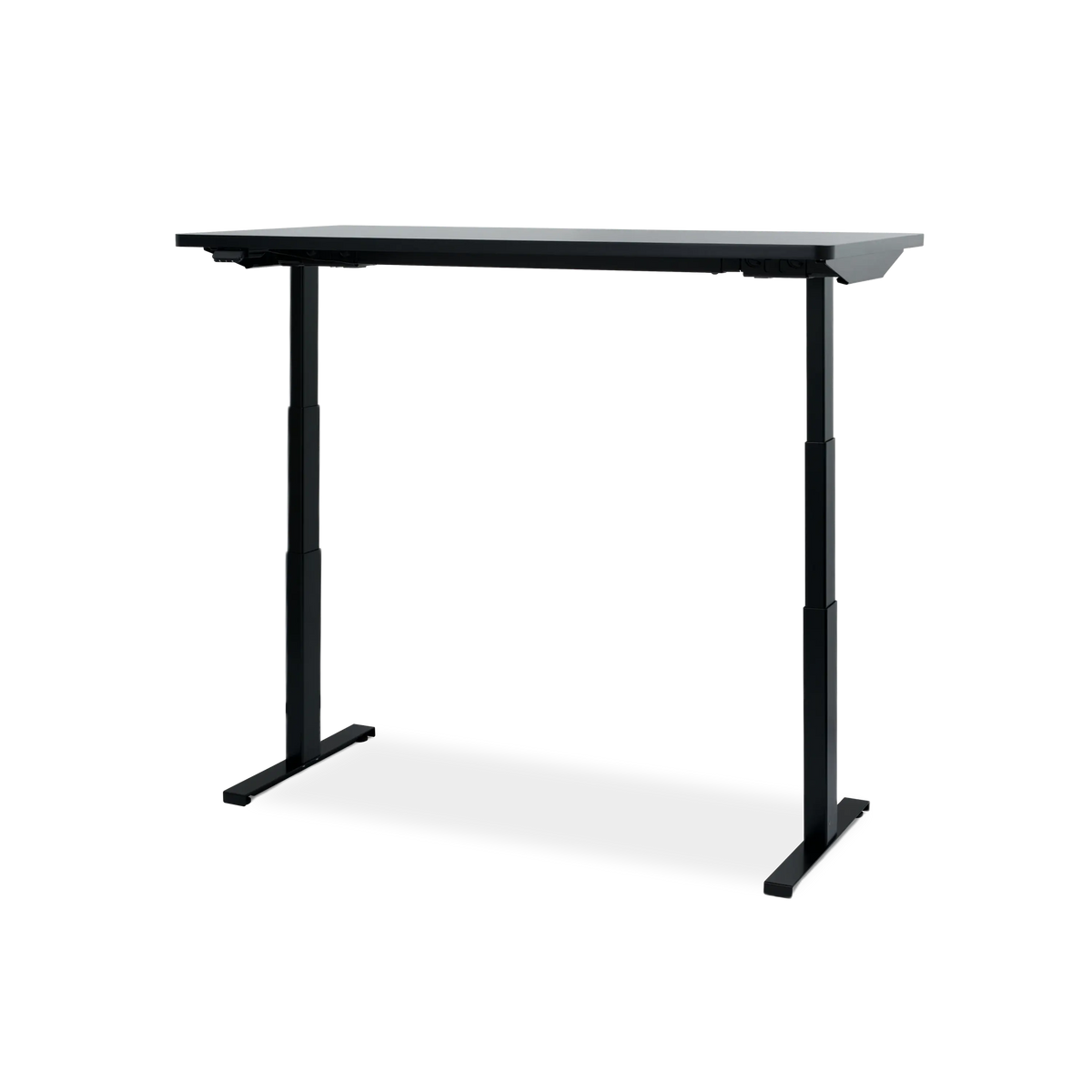
The current Hexcal Elevate Standing Desk is one configurable option for this arrangement. Compare the actual desktop and installed configuration with your requirements. A height range alone does not establish fit after changes such as a different desktop, input tray or caster installation.

If you plan to change the feet, use the standing desk caster fit guide before setting the working heights.
Step 4: Separate what moves from what stays in the room
Label each device as moving or fixed. A monitor sitting on the desktop moves with it. A floor-standing computer stays where it is. An under-desk power arrangement only moves with the surface when the mounting method supports that installation.
The important cables cross between those groups. A computer on the floor may have display, USB, audio and other connections leading to desktop equipment. Each needs a workable route through the desk's approved travel. Moving a power strip under the desk does not eliminate every fixed-to-moving connection.
Draw the endpoints before hiding anything. The standing desk cable slack guide handles the detailed routing and movement checks. In the overall layout, your job is to make sure no device or connection has disappeared from that map.
For a simple hypothetical example, a laptop and dock may sit together on the desktop while a network connection and wall power remain fixed. A second setup with a desktop PC beside the desk has a different boundary. Neither should inherit a cable plan from the other merely because both use two monitors.
Step 5: Keep everyday connections within reach
A clean photograph can conceal the port you unplug every evening. Keep daily connections accessible from the working position, and separate them from leads that rarely change.
Trace one daily action: disconnect the laptop, charge a temporary device, or swap a headset. If it requires opening a tray and releasing several fixed cables, reconsider the access point. A powered shelf may help organize the area, but its ports must provide the functions your equipment needs; charging, computer data and display output are separate capabilities.
Apply the same test to storage. Put frequently used items where they can be retrieved without moving the keyboard. Use the drawer clearance plan to preserve seated access and the standing desk cable-tray fit guide to keep plugs reachable. Avoid making the neatest surface dependent on a difficult daily routine.
Run the same task in both positions
Return to the task from the beginning. Open the same application, use the same input devices and repeat the daily connection you identified. Record the result before you tidy the last visible cable.
| Check | Seated | Standing | Decision if it fails |
|---|---|---|---|
| Main screen remains readable | Check the actual application | Check again after adjustment | Change screen position or layout |
| Keyboard and mouse have usable space | Include chair and arm position | Include the standing position | Reposition equipment before adding accessories |
| Daily connection is reachable | Try the normal action | Check reach again | Move the access point |
| Fixed-to-moving connections remain suitable | Inspect the planned route | Follow the equipment instructions for the other position | Rework the route before using the desk's movement |
Suppose the screens and keyboard work in both positions, but a cable from the floor PC becomes tight as the desk rises. The desk layout has not passed just because the surface looks orderly. Stop the adjustment and resolve the connection route; do not continue raising it to find the cable's limit.
Keep the inventory, the support outline and the connection map. They give the next device change a starting point. A useful standing desk setup lets you return to familiar work with equipment you understand, while leaving room to adjust the arrangement when that work changes.