Ultrawide Monitor Setup: Plan the Screen, Support and Desk
A wider display can give a timeline more room while moving its edges beyond the space you can use easily. An ultrawide monitor setup starts with the work you want visible, then checks the screen, support and desk as one arrangement.
Choose the display around your applications and connection requirements. Establish its physical position before buying a shelf or arm, and test the window layout before finishing the cable route. More screen area is useful when the work can use it without making everyday controls harder to reach.
Step 1: Choose the screen around the work
Start with a representative task. For document work, place the files and reference material you need side by side. For editing, identify the timeline, preview and controls that must remain visible. For games, check the title's own support for the proposed aspect ratio and display mode.
An ultrawide puts the work on one continuous panel. Separate monitors give you independently positioned surfaces and can separate a shared screen from private reference material. Neither arrangement has a universal productivity advantage. Choose the layout that serves the actual task.
Resolution, scaling and physical width work together. A larger panel does not automatically show more readable text at your chosen scaling. Check how your applications use the space rather than deciding from diagonal size alone. Color-sensitive work also needs an appropriate display and workflow; a wider aspect ratio does not establish color performance.
Keep the existing equipment in the comparison. If two working screens already give the layout you need, replacing them with one ultrawide needs a reason beyond a current desk trend.
Step 2: Verify the complete display connection
Record the computer model, intended display mode, monitor input and cable. Check the exact manufacturer's supported combinations for resolution and refresh rate. A connector that fits does not establish the complete signal path, and an adapter introduces another capability to verify.
If a dock is present, include it in that path. Confirm the required display mode through that dock and host combination. A dock's peripheral ports can remain useful even when the display needs a separate connection.
For a concrete host reference, Apple's Mac mini M4 specifications describe display outputs and supported combinations. Use the equivalent official information for your own computer. Match the display mode to the outputs your own computer supports.
Separate signal from power in the cable plan. A powered shelf can organize equipment without providing the display output. Connect and verify the intended screen mode before securing the route behind the desk.
Step 3: Choose the support and usable desk position
A wider screen can weigh less than the display it replaces and still demand more desk space. Its base, curve, rear connectors and viewing position change the fit. Before adding a shelf to an ultrawide monitor setup, draw the support arrangement around the actual display.
The support check asks whether the equipment can occupy the intended desk arrangement while preserving access and the required screen position.
Support check 1: Use physical dimensions alongside screen size
Screen diagonal does not describe the monitor's base or the depth occupied by a curved display. Record the complete base contact outline, the panel's outside dimensions and the rear connector clearance. If the screen sits on an arm, record its movement envelope instead of assuming the original base footprint applies.

If you are comparing an ultrawide with two monitors, sketch both layouts. Dell's U2723QE specifications list a panel width of 61.14 cm without the stand. Two such panels placed side by side with no gap span about 122.28 cm. That simple sum describes panel width only; it does not establish the size or position of their bases.
Against the current Gen2's published overall width of 120 cm, the pair would extend beyond that outside width when placed side by side with no gap. Panel overhang and base support are different measurements. Check where the bases touch the shelf and whether those contact points are fully supported.
Support check 2: Reject a base that the support area cannot carry
For a depth example, consider an ultrawide with a 31 cm-deep base and a shelf with 20 cm of usable support depth. Even if the total load is below the shelf's published limit, this arrangement fails the contact-area check unless the manufacturers explicitly permit it.
A low weight does not make unsupported feet acceptable. Choose a suitable deeper support, retain the original base on the desktop, or evaluate a compatible arm. Do not add an improvised board and assume the original support rating still applies.
The monitor stand fit guide provides the measurement key and a separate screen-height calculation.
Support check 3: Recalculate the load for the chosen support
For two base-supported displays, count both monitors with their bases and all other items carried on the shelf. For an arm, use the required mounting weight and attached accessories. A single-screen arm's rating is not a total budget for a dual-screen array.
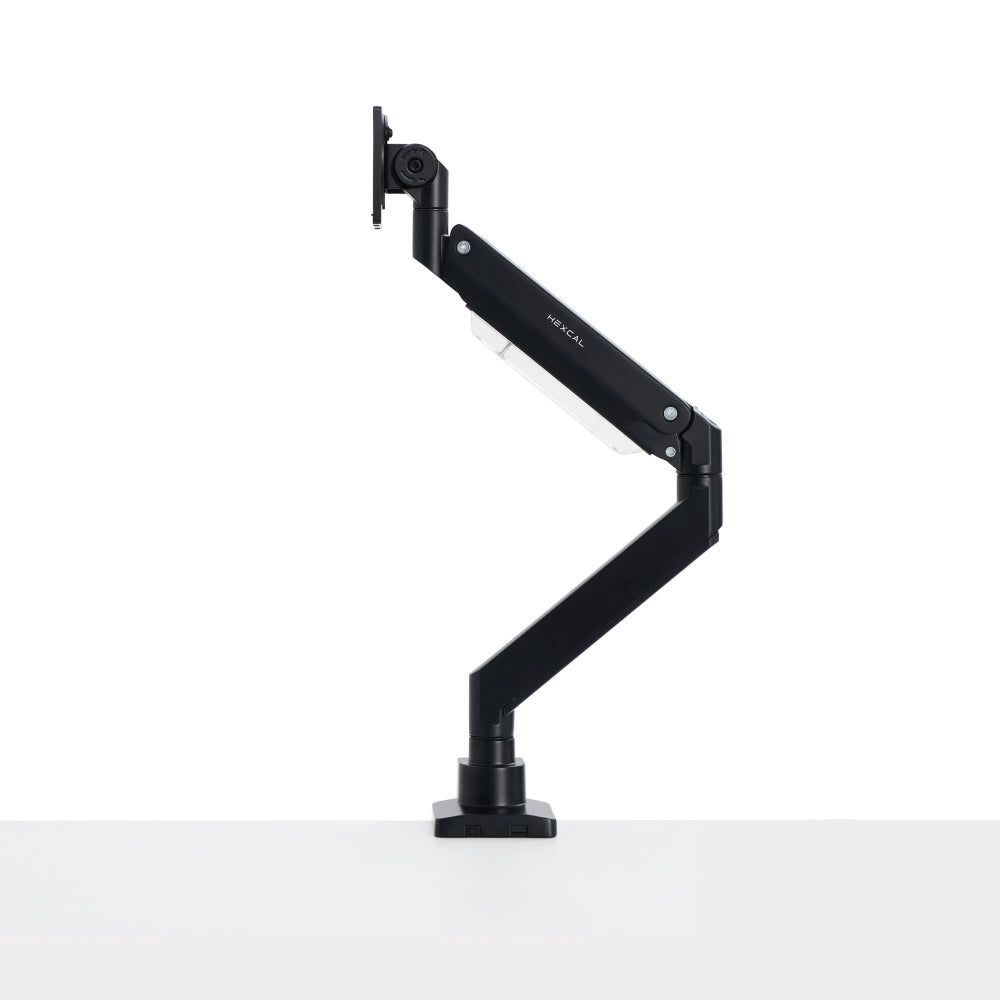
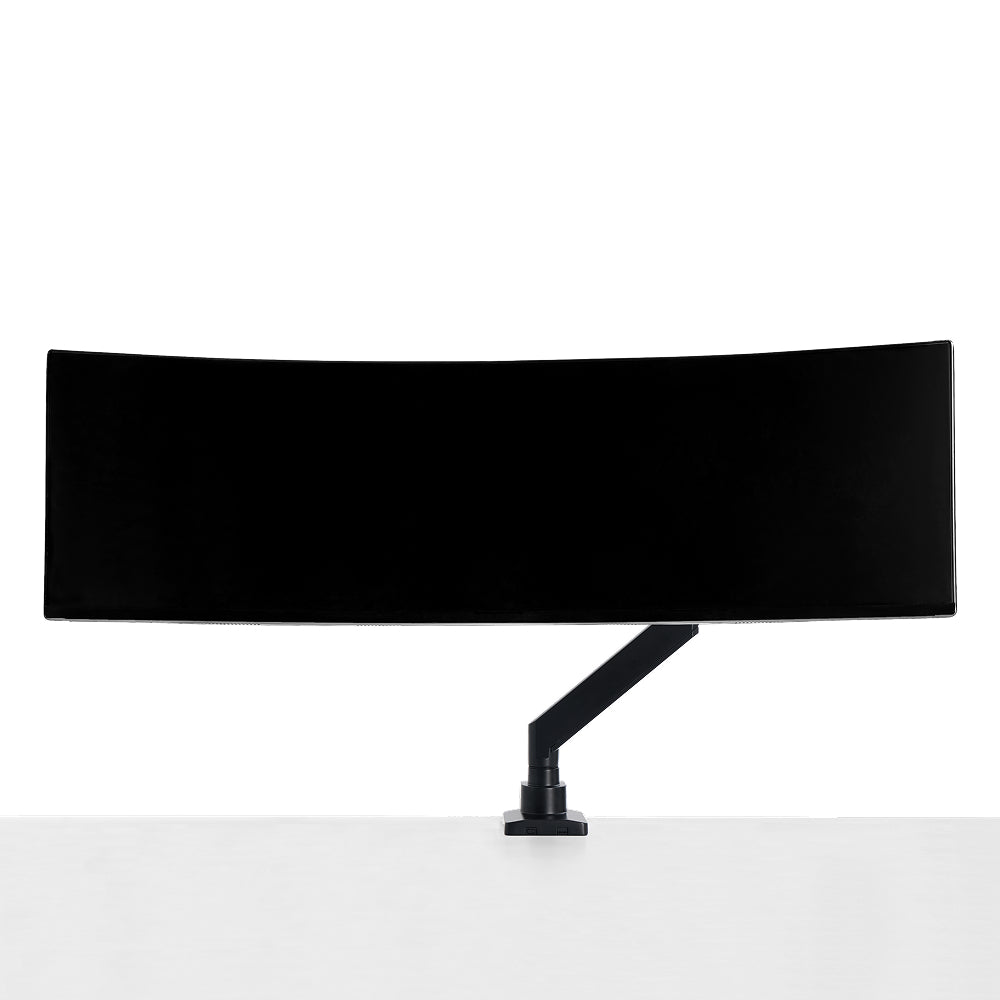
The current Hexcal Heavy Duty Monitor Arm supports one display and specifies different flat-screen and curved-screen weight ranges. Match the exact display, VESA pattern and desk fixing requirements before treating it as an alternative to a shelf.
Match the support to the arrangement:
| Arrangement | What carries the display | What needs its own check |
|---|---|---|
| One ultrawide on original base | Shelf or desktop under the complete base | Contact depth, total load and resulting height |
| Two displays on original bases | Both complete contact outlines | Combined load, spacing and independent height ranges |
| One display on an arm | Arm and approved desktop fixing | Mounted load, VESA, movement and desktop |
| Shelf plus arm | Each product's separate support route | Clamp clearance, opening access and cable travel |
Support check 4: Preserve the workspace and access routes
Mark the display and support at their intended position. Add the keyboard, mouse and anything stored below the shelf. Check whether the screen can stay at the required viewing distance without pushing the keyboard off its working area.
If an arm shares the desk with Studio, mount it to the approved desktop surface. Hexcal's Heavy Duty guidance discourages clamping it to the Studio chassis. Keep the shelf opening path and rear cable exits clear.
For a moving desk, the standing desk slack guide covers the fixed-to-moving connections. The premium monitor stand buying guide helps decide which integrated functions are useful once the support arrangement works.
Choose for long-term use. Save the base outline, support route and cable map so the next screen change starts from known constraints. A bigger panel should trigger a new fit check, even when the old display worked well.
Step 4: Set up the windows before final cable dressing
Arrange the applications you use together at the intended scaling. Put the main task in a position you can read without leaning forward. Move frequently used controls into a useful area instead of stretching every window to the panel's full width.
For screen sharing, check whether sharing a single application or region gives the other person a readable view. For games and full-screen applications, inspect the intended mode for cropping, stretching or unused areas. These checks are specific to the application; the monitor's aspect ratio alone cannot predict them.
Return to the physical layout after this trial. If you repeatedly turn to the far edge for essential controls, change the window arrangement or reconsider the screen position. If the keyboard is forced too far forward, reassess the base or support footprint. Keep the connection route accessible while making those changes.
Use the setup through the tasks that motivated the change, then finish the cable management using the equipment instructions. Preserve a serviceable route for the next display replacement. Choose for long-term use: the useful outcome is a workstation whose work, support and connections still make sense together after the photograph is taken.