Choosing a Standing Desk for an Ultrawide Monitor: Fit Before Features
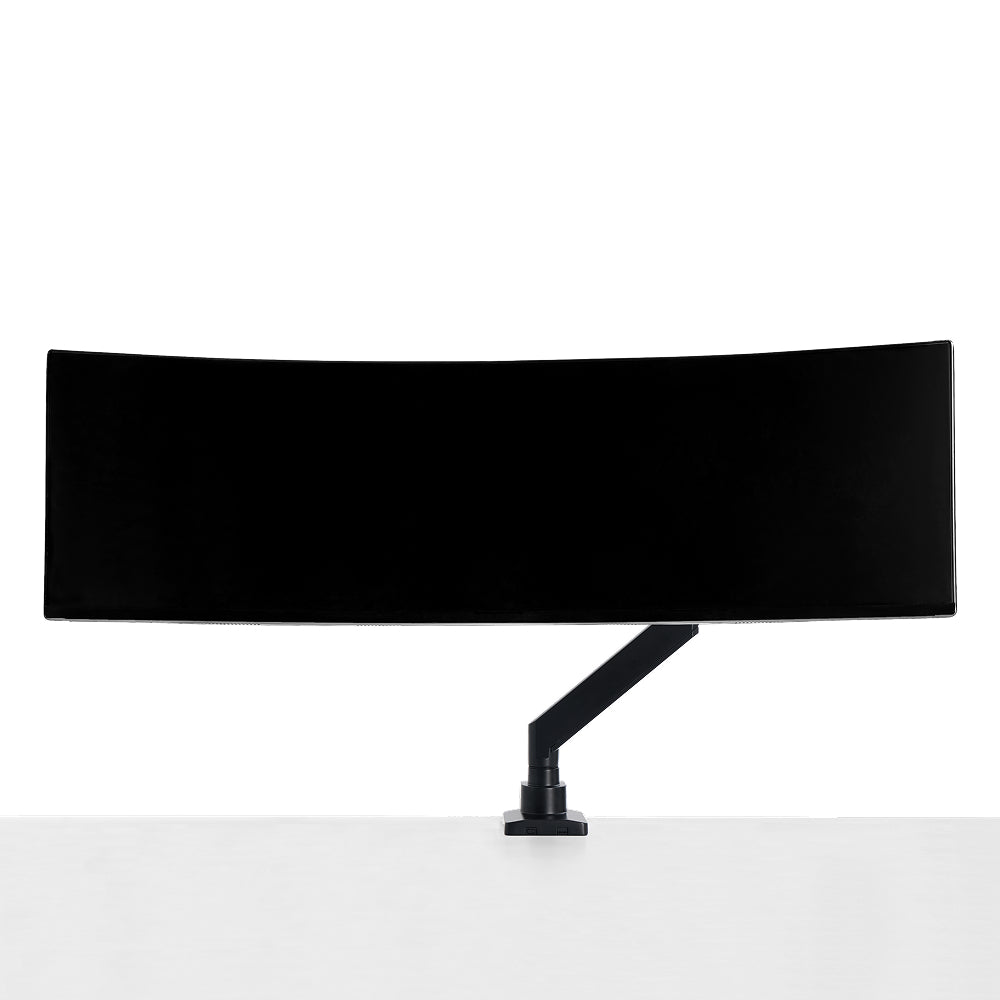
An ultrawide can fit across a desktop and still leave you too close to the screen. Its original stand may occupy the keyboard area. A monitor arm may solve that problem and discover another one underneath: the desk frame blocks the clamp.
Choose a standing desk for an ultrawide monitor by checking the complete display arrangement, usable work area, mounting surface and room around the moving desk. Read the load definition for the exact configuration, then decide whether it can accommodate your seated and standing positions. Screen diagonal and a headline weight rating cannot answer those questions alone.
Step 1: Measure the display you intend to use
Start with the monitor model and the manufacturer's physical dimensions. Record the panel's outside width, the original stand's full contact outline, and the depth required by rear connectors. If you plan to use an arm, record the mounted display weight and its specific mounting requirements instead of carrying over the original stand's footprint.
Screen diagonal does not describe the base. Two displays sold in the same size class can occupy different depths because their stands, curve and connector positions differ. A deeper curve can also affect the position of the panel relative to the desk edge.
Mark the arrangement on a candidate desktop outline. Include the keyboard, mouse, speakers and any notebook or control surface used alongside them. Keep the complete base supported wherever the manufacturer requires support; a panel extending beyond the support surface and a stand foot extending beyond it are different conditions.
The ultrawide monitor setup guide covers the screen, support and signal path in more detail. Here the decision is which desk configuration can carry that arrangement while preserving the working area.

Step 2: Compare usable depth, then check the room
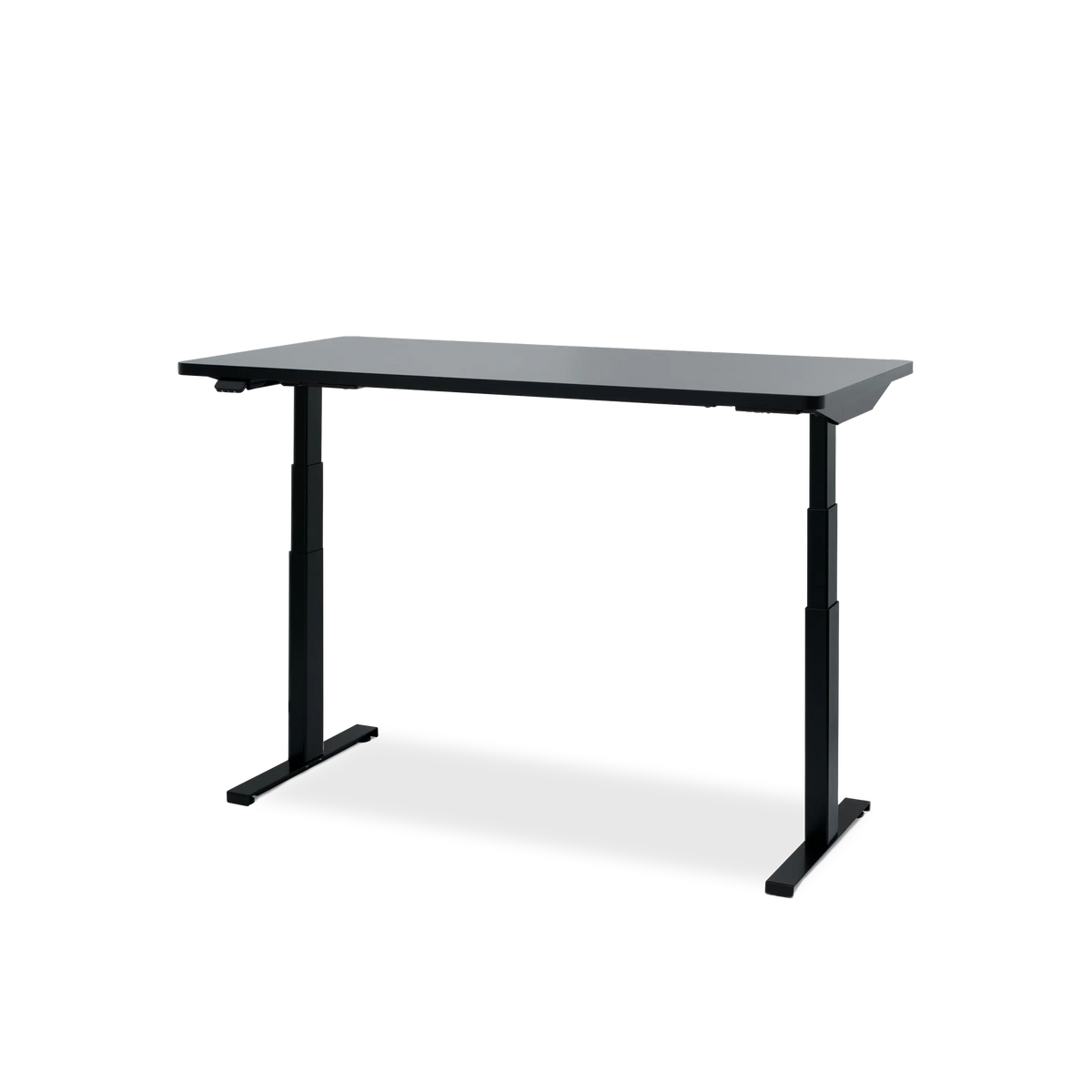
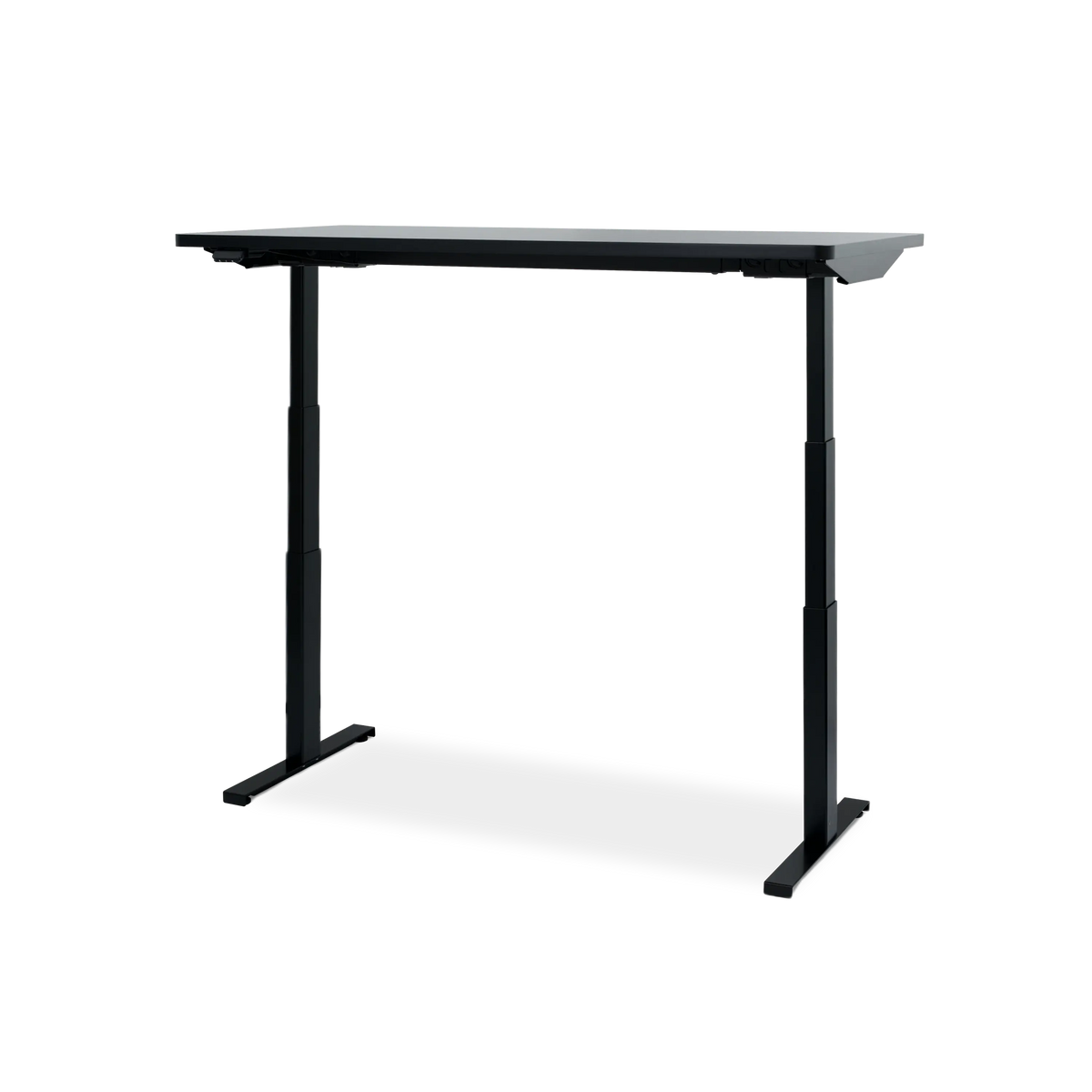
At the current Hexcal Elevate Standing Desk page, published desktop options include 1.4 × 0.7 m, 1.6 × 0.8 m and 1.8 × 0.8 m. Those are reference configurations, not a rule that every ultrawide requires an 80 cm-deep surface.
Compare a 70 cm and an 80 cm outline with the same proposed equipment position. The extra 10 cm is useful only if it supports a better arrangement and the room can accommodate it. Measure the screen and keyboard positions rather than deciding that either depth is automatically sufficient.
A worked 70 cm versus 80 cm layout
Here is a hypothetical plan using separate, non-overlapping bands from the rear edge toward the user. These are chosen layout allowances, not Hexcal specifications or universal ergonomic minimums.
| Part of this assumed layout | Depth reserved |
|---|---|
| Rear edge to the monitor base | 5 cm |
| Original monitor base | 30 cm |
| Gap from the base to input devices | 10 cm |
| Keyboard and mouse area | 25 cm |
| Input area to the front edge | 5 cm |
| Total planned depth | 75 cm |
A 70 cm-deep desktop cannot hold this particular layout without changing a position or allowance. An 80 cm-deep desktop leaves 5 cm beyond the planned bands and is a candidate for the next checks. It has not automatically passed the viewing-position or mounting checks.
An arm may remove the original base from this plan, but it introduces its own fixing point, rear movement and cable route. Redraw the arrangement rather than subtracting 30 cm and declaring the smaller desk suitable. Use your monitor's measured base and your actual input positions in place of these assumed values.
OSHA's monitor guidance describes viewing distance as the relationship between the user's eyes and screen. It cannot be copied directly into a desktop-depth requirement. CCOHS also explains that positioning guidance varies and needs to be applied to the actual user and task.
Look behind the desk as well as on top. An arm may need space to fold or turn. Connectors and cables need their specified bend and access space. A desktop that fits the room while stationary may still put equipment into a shelf or window ledge during adjustment.
Step 3: Check the fixing point from underneath
With an arm, desktop thickness is only one part of the fixing check. The clamp needs an approved gripping surface and enough unobstructed space to install and use it. A frame rail, tray, drawer, shaped edge or other fitting can prevent a nominally compatible clamp from sitting correctly.
Use the exact arm and desk documentation. Check both sides of the desktop at the proposed location. For a through-desk mounting arrangement, an existing hole is not enough evidence: its position, dimensions and the surrounding surface also need to meet the equipment requirements.
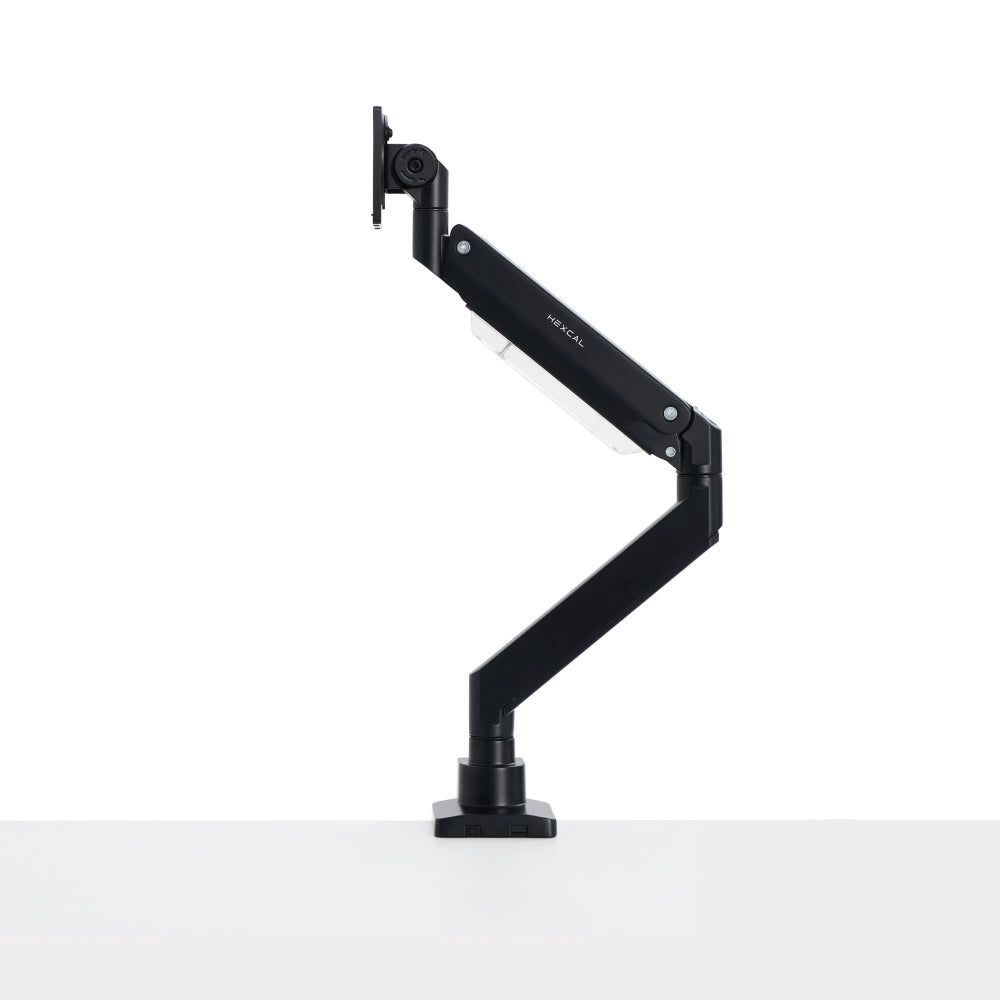
The current Heavy Duty Monitor Arm is a single-display product with different published flat-screen and curved-screen load ranges. Its product page also discourages clamping it to the Studio chassis. Mounting a display to a desk and placing its base on a shelf are distinct support routes.
Reject the arm arrangement if the fixing point cannot meet the requirements. A larger desk load rating does not repair a blocked clamp location. Possible alternatives include a documented fixing position elsewhere on the desktop, keeping the monitor's original stand, or choosing a different approved support.

Step 4: Count the desktop in the desk's load definition
The Elevate FAQ states that its 160 kg rating includes the desktop. Do not interpret that as permission to add 160 kg of equipment on top. Check the scope of the published rating for the exact configuration, including any accessories that change the supported assembly.
List everything carried by the lifting desk: desktop, monitor and its support, computer if it moves with the surface, shelf, drawer, tray, adapters and other equipment. Keep that calculation separate from an arm's mounted-display rating.
Use the standing desk load-definition guide for a complete-load calculation. For this ultrawide decision, keep the display-support check separate: the monitor must fit its own base or arm even when the total desk load is within the desk's rating.
If the computer stays on a separate support, revise the moving-load calculation and the cable plan. If you add casters, use the approved complete configuration's limits rather than inheriting the stationary desk's rating.
Confirm the caster height and load definitions for the proposed moving configuration.
Step 5: Check the arrangement at both working positions
Measure the working positions you need. A desk that reaches a useful standing height can still be too high for seated keyboard use. The installed configuration matters: desktop thickness, an input tray and foot accessories can change the relationships that a bare-frame specification does not describe.
Do not use a screen-size-to-desk-height table as proof of fit. Place the input devices, check your posture and then position the screen. If the original monitor stand cannot provide the resulting screen position, revisit the support arrangement.
Draw the occupied space above and below the desk at both positions. Include the monitor, arm, tray and drawer rather than only the rectangular desktop. The standing desk cable slack guide covers connections that must cross from room-fixed equipment to the moving surface.
Keep the existing screen when it still suits your work. A fit check can reveal that a new support or a different layout is enough; it does not have to become a shopping list for an entirely new workstation.
Compare complete configurations before deciding
Use a decision sheet for each actual candidate. A single pass in one column cannot substitute for the others.
| Check | Record for the candidate | Reject or revise when |
|---|---|---|
| Desktop arrangement | Display support, inputs and remaining work area | A supported base or usable input area cannot fit |
| Mounting route | Exact arm or original stand, approved fixing point | Frame or accessories block the fixing surface |
| Load definition | Desktop and all carried equipment | The relevant complete-configuration limit is unknown or exceeded |
| Working positions | Required seated and standing relationships | One position cannot be reached with the chosen input arrangement |
| Room and movement | Rear space, underside clearance and connection routes | The arrangement meets an obstruction or a connection cannot accommodate it |
Consider two hypothetical outcomes. On one desk, the original base leaves the working area you need, every support point is carried, and the documented installation and load checks pass. That is a configuration worth considering even if it uses no monitor arm.
On another, the complete load is below the published desk rating but a steel rail blocks the only practical arm location. That configuration fails as proposed. Keeping the original base or changing the desktop and fixing arrangement is a new option to check, not a detail to work around with extra tightening.
Save the measurements with the monitor model and source documents. Once a desk configuration passes, use the standing desk setup plan to arrange the equipment and connections. Keep that plan for the next screen change instead of starting the choice again from diagonal size.